
Starting ChemistryLab Studio
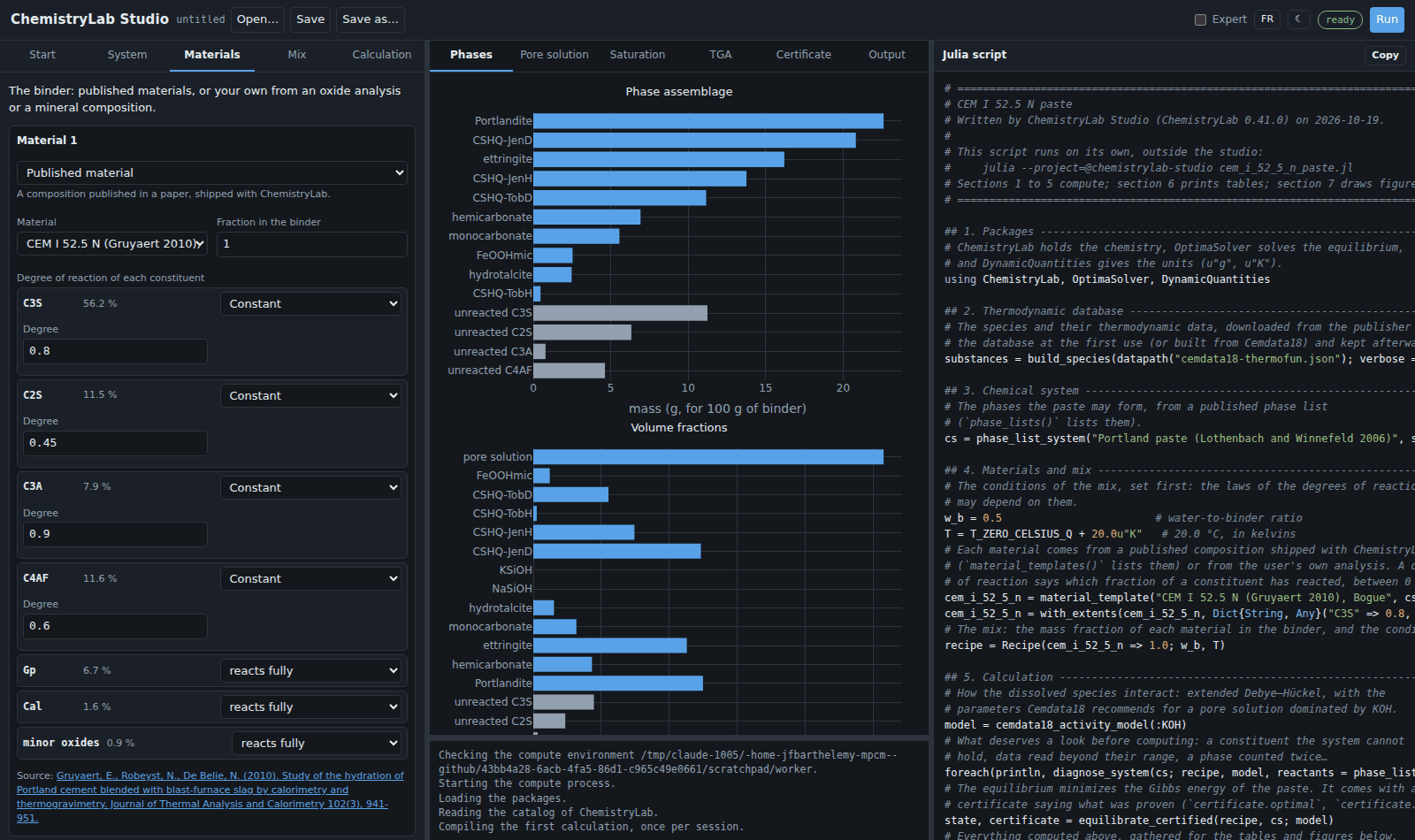
ChemistryLab Studio is a graphical interface for cementitious materials. It runs in your web browser, on your own machine: you build a calculation with forms, run it, read its plots and tables, and get the Julia script that does the same calculation on its own. No programming is needed to use it, and the script it writes is a way to learn. 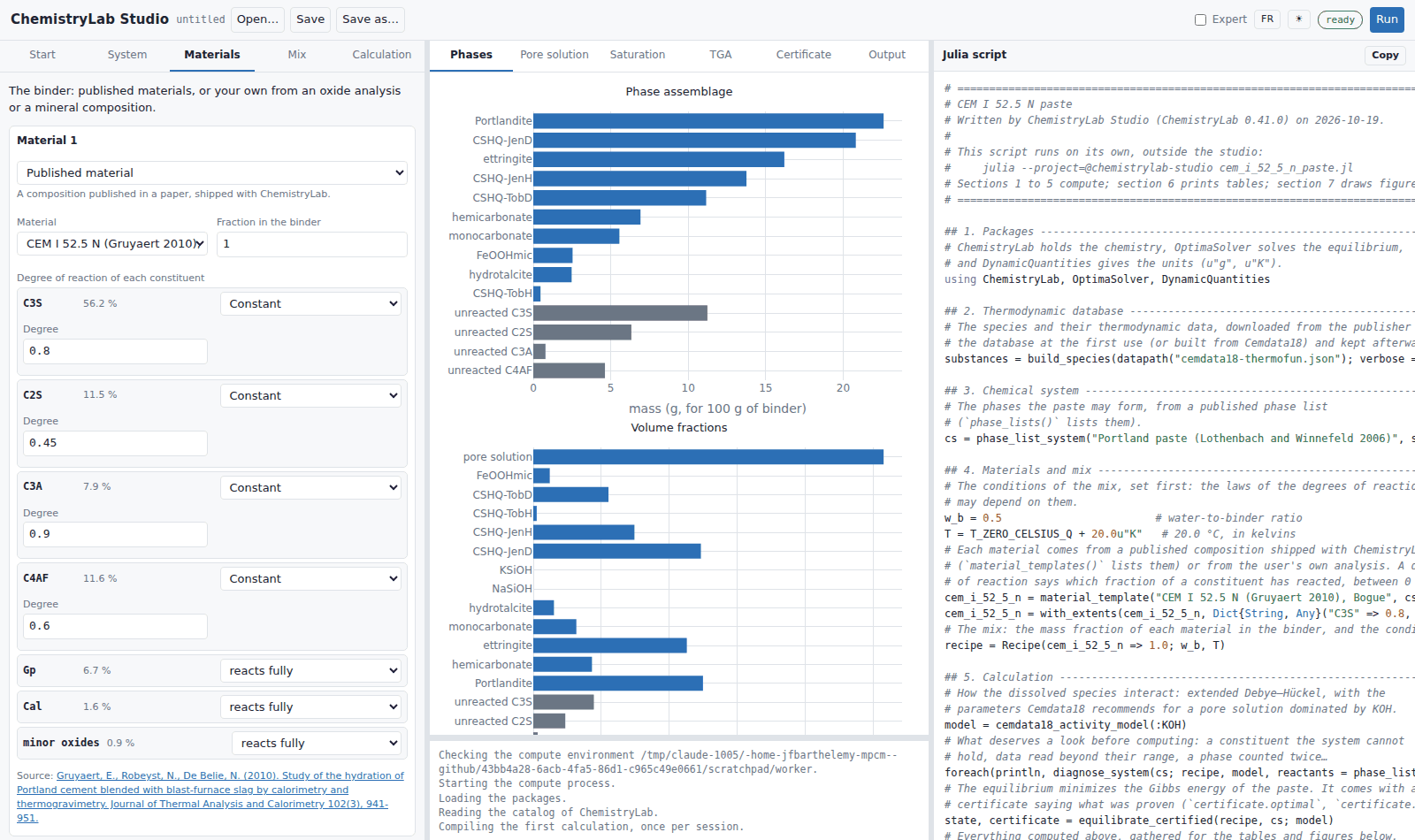
What you need
Julia 1.12 or later, installed with juliaup, the Julia installer.
A web browser.
Installing and starting
The studio comes with ChemistryLab. In a Julia session (the REPL), type ] to enter the package mode, then add ChemistryLab once:
pkg> add ChemistryLabPress Backspace to leave the package mode. Each time you want the studio:
julia> using ChemistryLab

julia> clstudio()
ChemistryLab Studio → http://127.0.0.1:8766/?token=…
The browser opens on the studio. The Julia session stays busy while the studio runs; press Ctrl-C in it to stop the studio.
What happens the first time
The calculations do not run in your Julia session but in a second Julia process, in an environment of its own named @chemistrylab-studio. The page opens at once and shows, under Getting ready, what is being done:
The environment is prepared, once: ChemistryLab, its equilibrium solver OptimaSolver, DynamicQuantities for the units, OrdinaryDiffEq for the kinetic runs and Plots for the figures of the scripts. On a fresh installation this downloads and compiles them, which takes several minutes; it is much shorter when they are already installed.
The thermodynamic database is downloaded from its publisher, once, and kept on your machine.
The first calculation is compiled, at each start of the studio, which takes from under a minute to a few minutes depending on the machine. Later calculations of the same kind take a fraction of a second.
You can fill in the forms meanwhile. The badge at the top right turns green (ready) when a calculation can run.
Options
| Option | What it does |
|---|---|
port | The port to listen on. Without it the studio takes 8766, or the next free port when 8766 is taken. A port you name is used, or refused with a message. |
host | Where to listen, "127.0.0.1" by default: only this machine reaches the studio. |
no_browser = true | Do not open the browser; the address is printed. |
project | The environment the calculations run in, a folder or @name. By default the studio's own, which it creates and keeps. An environment named this way is checked, never modified. The CLSTUDIO_PROJECT environment variable does the same. |
julia | The Julia program of the calculations, if it is not the one running. |
check = true | Prepare and check the environment of the calculations, print what it holds, and stop. |
wait = false | Return at once, the studio running: h = clstudio(wait = false), then close(h) stops it. |
update = true | Update the packages of the studio's environment before starting. |
The address and its token
The address ends with ?token=…, a random key drawn at each start. The page sends it back with every request, and the studio refuses any request without it: the studio runs Julia code on request, so no other web page you visit, and no other user of the machine, may talk to it. Do not share the address.
On a remote machine
When Julia runs on another machine (over SSH, or in a VS Code remote window), the studio prints its address instead of opening a browser. Open it in the browser of your own machine:
VS Code forwards the port by itself: click the address in the terminal.
SSH: forward the port when you connect, then open the address locally:
bashssh -L 8766:127.0.0.1:8766 user@machine
Running a saved script without the studio
A script the studio saved runs in the studio's environment, in a terminal:
julia --project=@chemistrylab-studio my_study.jlIt prints its tables and saves its figure next to itself.
When something goes wrong
| What you see | What to do |
|---|---|
| The badge stays on preparing or starting | Watch the log under the results: it shows what is being installed or compiled. |
| failed, with a message | Read the message; clstudio(check = true) in a Julia session diagnoses the environment. The Restart button tries again. |
| Only … GB of memory are free | The studio refuses to start a calculation that could exhaust the machine's memory. Close other programs, then run again. |
| The calculation was stopped: it needed more than … | The calculation outgrew the memory the machine can spare and was stopped. Make it smaller. |
| A database is unavailable | The message says where to download the file and how to install it. |
| port … is already in use | Another program uses that port: start with another one, clstudio(port = 9000). |
| The packages are old | clstudio(update = true). |
Reference
ChemistryLab.Studio.clstudio Function
clstudio(; host = "127.0.0.1", port = nothing, no_browser = false,
           project = nothing, julia = nothing, check = false, wait = true,
           update = false)
Start ChemistryLab Studio, the graphical interface for cementitious materials, and block until it stops (press Ctrl-C in the REPL). With wait = false, return a handle at once and keep the REPL free: close(handle) stops the studio.
The first launch prepares the environment the calculations run in, @chemistrylab-studio, which takes several minutes; the page opens at once and shows the progress. The first calculation of a session then compiles, which takes a while depending on the machine; later ones take a fraction of a second.
Arguments
host/port— where to listen; the address printed ishttp://host:port/?token=…. Withoutport, the studio takes 8766, or the next free port when 8766 is taken (MFH Studio uses 8765, so both run together); aportgiven explicitly is used or refused.no_browser— start without opening the browser (the address is printed).project— the environment the calculations run in: a folder, or@namefor a shared one. By default the studio's own@chemistrylab-studio, which it creates and keeps; theCLSTUDIO_PROJECTenvironment variable is honored. An environment named this way is only checked, never modified.julia— the Julia executable of the compute process (default: the running one; theJULIAenvironment variable is honored).check— prepare and check the compute environment, print what it holds, and stop instead of serving.wait— block until the studio stops (default), or return its handle.update— update the packages of the studio's environment before starting.
On a remote machine (SSH, a VS Code remote window) the studio prints its address: open it on your own machine, after forwarding the port (ssh -L 8766:127.0.0.1:8766 …; VS Code forwards it by itself).
Examples
using ChemistryLab
clstudio()                     # opens the browser on http://127.0.0.1:8766
clstudio(port = 9000)          # another port
clstudio(no_browser = true)    # stay in the terminal
h = clstudio(wait = false)     # keep the REPL; later `close(h)`
clstudio(check = true)         # diagnose the compute environment